Your page ranks on Google but AI never cites it: a one-page diagnosis
A step-by-step way to diagnose one URL that ranks and earns clicks on Google but never gets cited by ChatGPT or other AI engines, plus what the reverse case means.
Most SEO teams have at least one of these pages. It sits in the top three on Google for a query that matters, Search Console shows steady clicks, and when you ask ChatGPT or Perplexity the same question, the answer cites two competitors and a forum thread. Your page isn't on the list.
The usual reaction is a site-wide audit, which is often the wrong size of tool. When one specific page is the problem, you get further by taking that URL apart: what search engines see, what AI crawlers fetched, what they actually read, and which page they cited instead. This guide walks through that for a single page. Our broader piece on why page-one rankings don't guarantee AI citations covers the causes across a whole site. This is the one-URL version.
Why ranking and citing come apart
Google ranks a page for a query. An AI engine with live search takes more steps. It takes the user's prompt, often rewrites it into several narrower searches (query fanouts), retrieves results for each one, fetches some of those pages, reads them, and picks passages to build the answer. Your page can drop out at any of those points.
It can fail to be retrieved, because none of the fanout searches matched it even though the head query does. It can be retrieved but never fetched, because the bot that fetches pages at answer time is blocked, challenged or times out. Or it can be fetched and not used, because the text the bot received doesn't contain a clean answer, or another page answers the narrower question more directly.
Google can be perfectly happy with the same page at every one of those points. Googlebot may be allowed where GPTBot or OAI-SearchBot is not. Links and history can carry a page in Google while an engine reading the page text mostly cares whether the answer is actually on it.
The reverse happens too, and it's worth checking while you're at it: pages that barely rank but get cited anyway. They usually answer a narrow question very directly, often one that matches a fanout better than your main keyword does. Those pages show you what the engines want from your site, so keep a list of them.
Pick the right page
Start from search data, not AI data. You want a page with real non-branded demand, meaning people found it by searching the subject rather than your name. Branded clicks come from people who already know you, and they say little about whether the page answers the question.
In Promptwatch, that starting point is the Search insights tab of the 360 Dashboard, added on September 4, 2026. It puts Google Search Console and Bing Webmaster performance next to your AI data: clicks, impressions and top queries per page, with branded and non-branded queries split. Weekly windows snap to full weeks, and a banner tells you which date range the search numbers cover. That matters, because search data and AI data rarely end on the same day, and comparing a week that ends Sunday with one that ends Friday will mislead you.
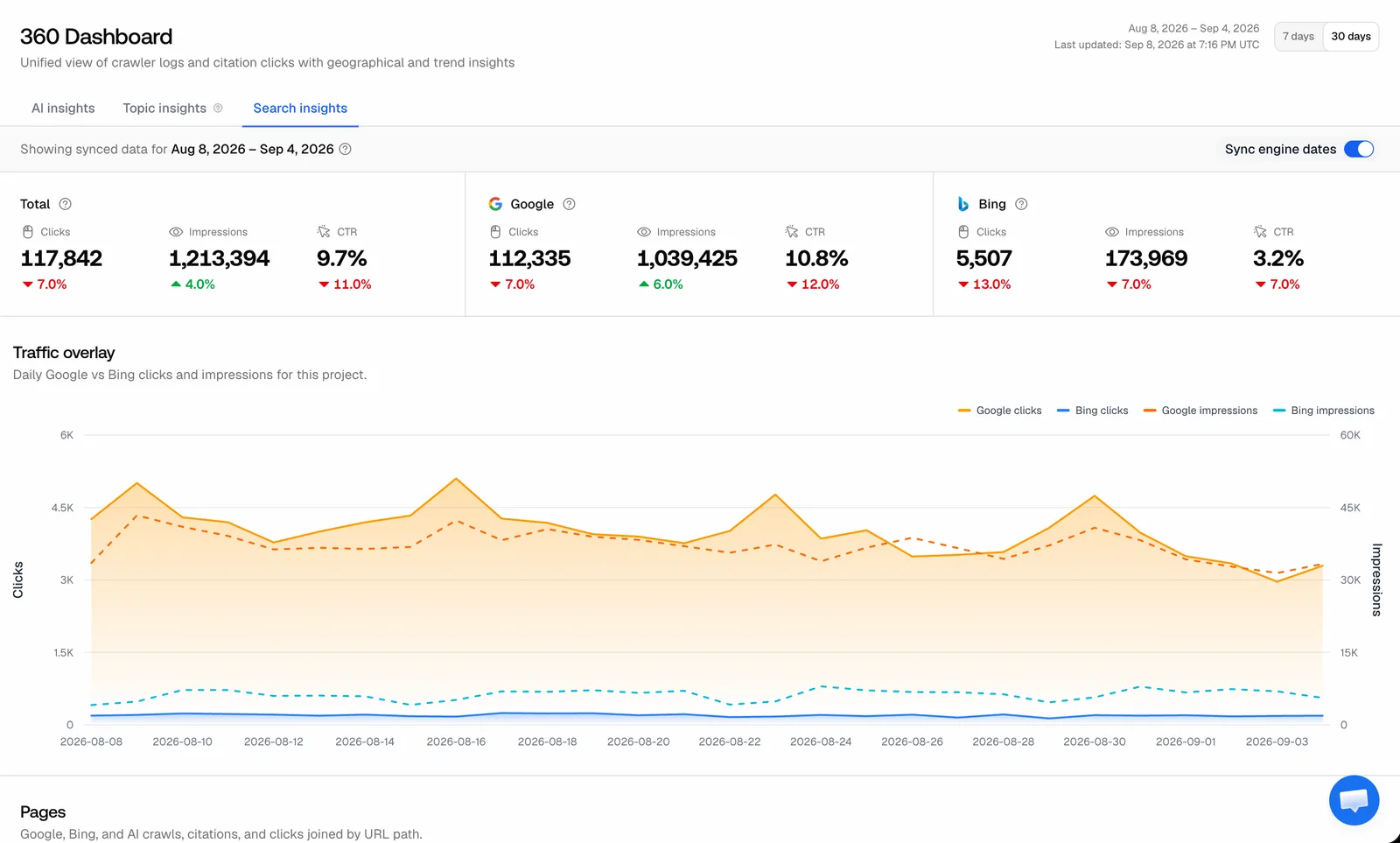 Promptwatch GEO 360 Search insights with Google and Bing, from the Promptwatch changelog (September 4, 2026). Example project data.
Sort the pages by Google clicks, look at non-branded queries, and pick a page that earns plenty of clicks and shows up nowhere in your AI citations. Just one page. Do the walkthrough below on it before you touch anything else.
Step 1: write down what the page ranks for
Open the page itself. Since November 6, 2026, a page opened from the Sitemap in Promptwatch has its own Google Search Console and Bing Webmaster tabs. Each shows clicks, impressions and click-through rate with the change from the previous period, a traffic chart, and the page's top search queries. You can switch between 7 and 30 days. Bing reports page data weekly, so its tab opens on 30 days and shows the Saturday to Friday range it covers.
Write down the top five non-branded queries. These are the questions Google thinks the page answers, and you'll compare them with the questions people put to AI engines.
Look at Bing as well as Google. Bing Webmaster data includes Microsoft Copilot, and a page that does well on Google can be weak on Bing for reasons Google data will never show. One practical note from the October 28 changelog: Bing revokes Webmaster access after 30 days, and the connection screen now says so. If the Bing tab is suddenly empty, reconnect before you read anything into it.
Step 2: make sure you track the right prompts
"AI never cites it" is only true for the prompts you checked. If you tried three prompts in ChatGPT last Tuesday, you have three samples from one engine on one day, and answers vary between runs.
Turn the page's queries into prompts that run every day across the engines you care about. Write them the way a person asks an assistant, which is usually longer and more specific than a search query. Promptwatch's Prompt Explorer has a Ranking keywords tab (added September 19): enter the page URL and it looks up the Google keywords the page ranks for, then turns them into prompt suggestions you can add to a monitor. Give those prompts a week or two of answers before you judge anything.
Step 3: confirm the gap on the AI side
Once answers are in, open the page's AI Visibility tab, added November 4. It charts the page's citation rate and position over time, with the prompts and responses that cite it listed below. If prompts built from the page's own ranking queries never cite it, you've confirmed the gap with data instead of a hunch.
While you're there, open two or three of those responses and note which URLs got cited instead. You'll need them in step 6.
Step 4: check whether AI crawlers reach the page
Now the logs. The page's Agent Analytics tab shows citation visits, crawler visits, and a crawler log table for that one URL. Read it in this order.
If there are no crawler visits at all, suspect access. Check robots.txt for the AI user agents, then CDN or firewall rules and bot challenges. Look at how the page is linked as well, since a page that's only in the sitemap and nowhere in your navigation can be found late. The page header in Promptwatch puts the page's status, linking pages and last crawl in one row, which makes a quick first check. Promptwatch verifies crawler hits against each operator's published IP ranges, so a GPTBot visit in that table is the real GPTBot, not a scraper borrowing its user agent.
If crawlers visit but there are no citation visits, the engines have indexed the page and don't fetch it when they answer. The page is known but not chosen. That's a relevance question, and steps 5 and 6 deal with it.
If citation visits show up but your tracked answers never cite the page, the page is probably being fetched for questions you don't track, or fetched and then not quoted. Both are worth knowing. The first gives you prompts to add. The second is a content problem.
Step 5: read the page the way the crawler did
What you see in a browser isn't always what a crawler gets. Tabs, accordions, script-loaded sections, prices inside images, comparison tables built in the browser: any of these can leave the crawler with a far thinner page than the one you designed.
The Content tab on a sitemap page, also from November 4, shows the page as it was crawled, as a preview or as markdown, with its content stats next to it. Read the markdown version slowly. Does the answer to your top query appear in the first screen of text? Is the table there? Are the numbers there? If the markdown is mostly navigation and a hero sentence, you've found the problem, and no ranking report would ever have shown it to you.
The tab has one more useful detail. When the last two site audits both read the page, it shows how much changed between them and marks edits to the title. If citations fell around the time someone rewrote the page, you can see what they changed.
Step 6: compare with the page that got cited
Go back to the responses from step 3 and open the URLs the engines cited instead of yours. Then look at the query fanouts for those prompts, the narrower searches the engine actually ran. Promptwatch lists them per model with the exact sub-queries behind each response.
Compare the cited page with yours against those sub-queries. Usually the difference is plain once you look. The cited page answers the specific sub-question in a sentence or a table near the top. Yours answers the broad question well and the specific one not at all, or answers it in paragraph nine. Sometimes the cited page is a third-party review or a forum thread, which tells you the engine wants an outside opinion for that prompt. In that case your own page may never be the main source, and the work moves to getting your facts onto the pages it already cites.
To follow a competitor's page over time, add it to the Page Tracker, which takes any URL, yours or someone else's.
Step 7: fix the cause, then measure again
Match the fix to the step where the page failed.
| Where it failed | Likely cause | Fix | Where to check |
|---|---|---|---|
| No crawler visits | Blocked bot, challenge page, weak linking | robots.txt, CDN rules, internal links | Agent Analytics tab |
| Crawled, never fetched to answer | Page doesn't match the fanouts | Add sections that answer the sub-queries | AI Visibility tab |
| Fetched, not cited | Answer missing or buried in what the crawler reads | Move the answer up, put facts in plain text | Content tab, then AI Visibility |
| Cited page is a third party | Engine wants outside sources for this prompt | Get your facts onto the pages it cites | Citations for the prompt |
After a fix, watch the Agent Analytics tab for crawler activity first, then the AI Visibility tab for citation rate over the following weeks. Keep an eye on the Google tab too. Reworking a page for AI answers shouldn't cost you the ranking that made it worth diagnosing, and the change from the previous period on that tab will tell you fairly quickly if it did.
One caution when you compare periods. On November 4, Promptwatch's GEO 360 started counting search indexers such as OAI-SearchBot as AI crawls, and only bots that fetch a page while answering a user, like ChatGPT-User, as citation crawls. A before-and-after comparison that spans that date will show citation crawls falling and AI crawls rising for reasons that have nothing to do with your fix.
Running the walkthrough in Promptwatch
You can do every step by hand: Search Console in one tab, server logs in a terminal, a headless browser to see what the crawler got, and a spreadsheet of prompts you test yourself. It's slow, and the hand-tested prompts are the weakest part, because a handful of manual runs can't tell a real gap from a bad day.
Promptwatch puts the steps on one page per URL. Search Insights picks the page, the sitemap page tabs cover Google, Bing, AI Visibility, Content and Agent Analytics, and query fanouts plus Page Tracker cover the comparison. Since November 6, the Agent Chat panel also works on the Sitemap pages and every tab of a page's detail view, so you can ask it where the page's search data and AI data disagree and get the answer from what's on screen.
Plan check: 360 Insights, which includes Search Insights, is on every paid brand plan: Essential ($95/mo), Professional ($245/mo), Business ($579/mo) and Enterprise. It isn't on the agency plans. The Agent Analytics tab depends on crawler logs, and crawler logs start on Professional, so on Essential step 4 has no crawler data behind it. Professional is the plan where the whole walkthrough works.
Promptwatch offers a 7-day free trial on every self-serve paid plan. Start it on Professional from the pricing page, connect Search Console, Bing Webmaster and your crawler logs, and run these seven steps on the one page that's been bothering you most.